Jumpseller Dashboard: Understand Your Store Metrics
Dive deep into customer behavior with Jumpseller dashboard. Learn how to analyze key metrics, optimize your strategy, and boost your online store p...
Tampermonkey is an extension that lets you personalize how you see your store admin. This guide shows you how to add an order-unit counter, without writing code. The script is the code you will copy from this page.
You need up-to-date Google Chrome on a computer and access to your store admin. This example works on the current Orders screen at an address such as my-store.jumpseller.com/admin/. If you use another admin domain or a different order screen, contact us before installing it.
The counter appears only in the Chrome profile where you install it. It does not change orders or add the total to emails or exports. Do not use it to pack orders containing bundles or product packs, because their items may be counted more than once. It is not designed for Chrome on phones.
Chrome will confirm that the extension is installed. If you see Remove from Chrome, you already have it and can continue.
chrome://extensions/ in Chrome’s address bar and press Enter.The switch should be on, as shown here:

If you cannot find this setting, update Chrome and try again. If your computer does not allow updates, send us a screenshot so we can help. You can also check Tampermonkey’s official help.
You do not need to edit the code. It runs only on Jumpseller store admin order pages, not on the public storefront or other websites.
// ==UserScript==
// @name         Jumpseller — Order units (visual)
// @namespace    jumpseller.local.order-units
// @version      0.3.0
// @description  Suma las cantidades ya renderizadas del pedido. Solo visual; no guarda ni envía datos.
// @match        https://*.jumpseller.com/admin/*/orders/*
// @match        https://*.jumpseller.com/admin/orders/*
// @match        https://*.jumpseller.com/admin/*/orders-v2/*
// @match        https://*.jumpseller.com/admin/orders-v2/*
// @run-at       document-idle
// @grant        none
// @noframes
// ==/UserScript==
/* Local visual helper for Jumpseller admin order pages (orders and orders-v2) only.
 * No network calls, credentials, storage or order/theme writes.
 * Bundles/packs are unsupported: parent/component rows can be double-counted.
 * If the admin markup changes, disable the script and request a review.
 */
(() => {
  'use strict';
  if (!/^([a-z0-9]+(?:-[a-z0-9]+)*)\.jumpseller\.com$/i.test(location.hostname) || window.top !== window.self) return;
  // Supports both order screens: /admin/<locale>/orders/edit/<ID> and /admin/<locale>/orders-v2/edit/<ID>.
  if (location.protocol !== 'https:' || !/^\/admin\/(?:[a-z]{2}(?:-[a-z]{2})?\/)?orders(?:-v2)?(?:\/|$)/i.test(location.pathname)) return;
  const ROUTE = /^\/admin\/(?:([a-z]{2})(?:-[a-z]{2})?\/)?orders(?:-v2)?\/edit\/(\d+)\/?$/i;
  const KEY = '__jumpsellerVisualOrderUnits';
  const ID = 'jumpseller-visual-order-units';
  window[KEY]?.stop?.();
  let scheduled = null;
  let stopped = false;
  const routeId = () => location.pathname.match(ROUTE)?.[2] || null;
  const SPANISH = ['es', 'cl', 'mx', 'ar', 'co', 'pe', 'uy', 'ec', 'bo', 'py', 've', 'cr', 'gt', 'do', 'pa', 'sv', 'hn', 'ni'];
  const loc = (location.pathname.match(ROUTE)?.[1] || document.documentElement?.lang || 'en').slice(0, 2).toLowerCase();
  const labels = ['pt', 'br'].includes(loc)
    ? ['Total de unidades', 'linhas de produto', 'Cálculo local; não é guardado. Bundles não suportados.']
    : SPANISH.includes(loc)
      ? ['Total de unidades', 'líneas de producto', 'Cálculo local; no se guarda. Bundles no soportados.']
      : ['Total units', 'product lines', 'Local calculation; not saved. Bundles unsupported.'];
  function remove() { document.getElementById(ID)?.remove(); }
  function directText(element) {
    return Array.from(element.childNodes).filter(n => n.nodeType === 3).map(n => n.textContent).join('');
  }
  function readTable(table) {
    let units = 0, lines = 0;
    for (const row of table.querySelectorAll('tbody > tr')) {
      // Product rows show "$price x qty" in a div; subtotal/shipping/total rows don't.
      // The product image is not required: it can be missing and its markup differs between screens.
      const price = row.querySelector('td > div.tabular-nums');
      if (!price) continue;
      const match = directText(price).trim().match(/\s[x×]\s*(\d+)\s*$/u);
      if (!match) throw Error('Unrecognized quantity');
      const qty = Number(match[1]);
      if (!Number.isSafeInteger(qty) || qty < 0 || !Number.isSafeInteger(units + qty)) throw Error('Invalid quantity');
      units += qty; lines++;
    }
    if (!lines) throw Error('No product rows');
    return { units, lines };
  }
  function update() {
    scheduled = null;
    if (stopped) return;
    const id = routeId();
    if (!id) { remove(); return; }
    // Show a total only when the displayed order matches the current page.
    const headings = Array.from(document.querySelectorAll('.text-xl.font-normal'))
      .filter(e => new RegExp('#\\s*' + id + '\\s*$').test(e.textContent.trim()));
    if (headings.length !== 1) { remove(); return; }
    const heading = headings[0];
    const root = heading.parentElement;
    const tables = Array.from(root.querySelectorAll('table.w-full.border-collapse'))
      .filter(t => t.querySelector('tbody > tr > td > div.tabular-nums'));
    if (tables.length !== 1) { remove(); return; }
    let count;
    try { count = readTable(tables[0]); }
    catch (_) { remove(); return; } // Fail closed: no misleading partial count.
    let badge = document.getElementById(ID);
    if (!badge) {
      badge = document.createElement('div');
      badge.id = ID;
      badge.setAttribute('role', 'status');
      badge.setAttribute('aria-live', 'polite');
      badge.style.cssText = 'margin:8px 0;padding:10px 14px;border:1px solid #d1d5db;border-radius:6px;background:#f8fafc;color:#111827;font-size:15px;font-weight:600';
      heading.insertAdjacentElement('afterend', badge);
    } else if (badge.previousElementSibling !== heading) {
      heading.insertAdjacentElement('afterend', badge);
    }
    const label = `${labels[0]}: ${count.units}`;
    if (badge.textContent !== label) badge.textContent = label;
    const title = `#${id} · ${count.lines} ${labels[1]} · ${labels[2]}`;
    if (badge.title !== title) badge.title = title;
  }
  function schedule() {
    if (!stopped && scheduled === null) scheduled = setTimeout(update, 80);
  }
  const observer = new MutationObserver(schedule);
  observer.observe(document.body, { childList: true, subtree: true, characterData: true });
  const interval = setInterval(schedule, 1000); // URL changes with no DOM event.
  const handle = {
    stop() {
      stopped = true;
      observer.disconnect();
      clearTimeout(scheduled);
      clearInterval(interval);
      remove();
      if (window[KEY] === handle) delete window[KEY];
    }
  };
  window[KEY] = handle;
  update();
})();
If the button cannot copy, the code will be selected: press ⌘C or Ctrl+C. You can also download the script.
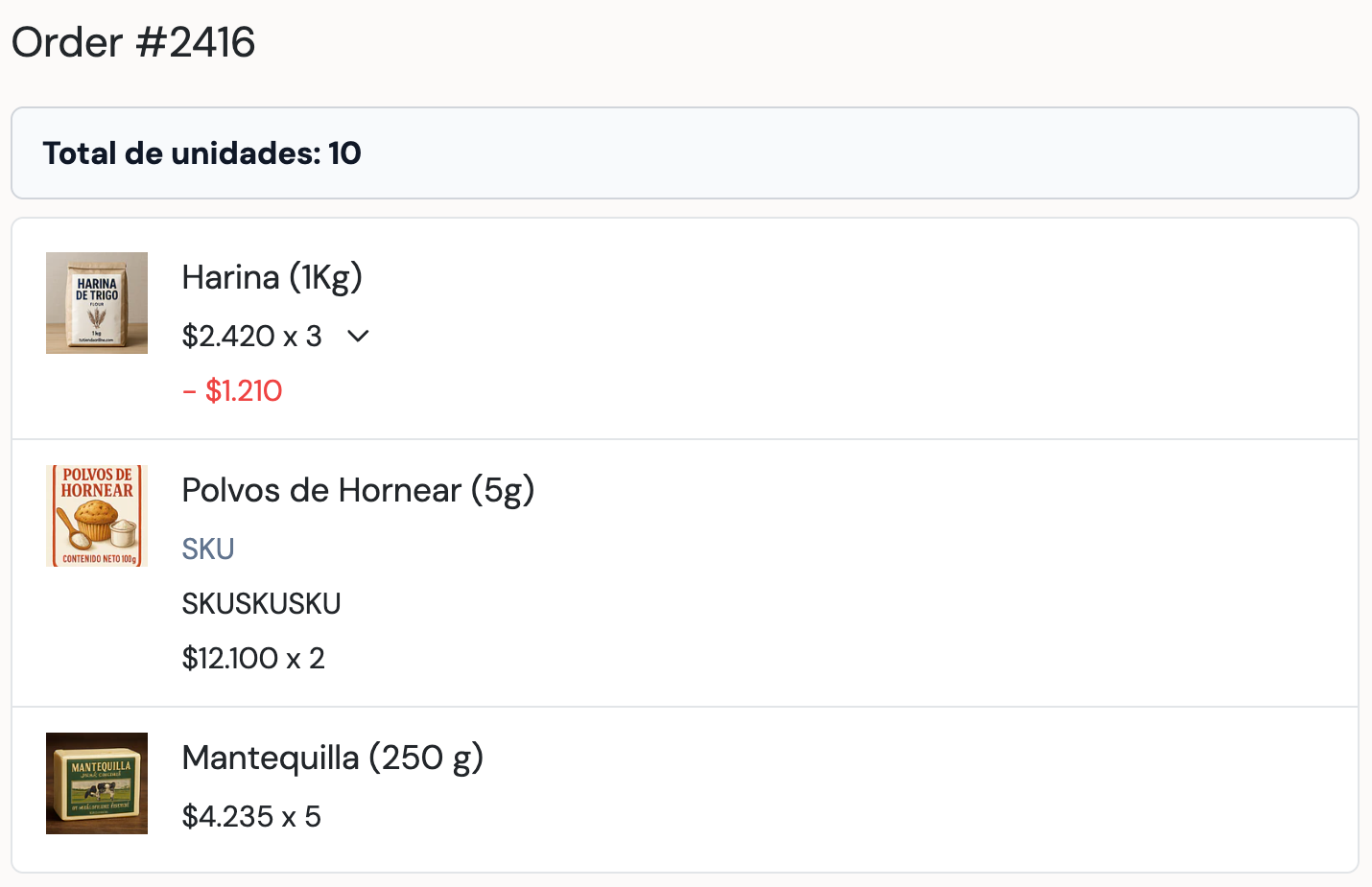
Example: an order with 10 units. Three bags of flour, two packs of baking powder and five packs of butter add up to 3 + 2 + 5 = 10.
To delete the script, use the bin icon next to its name. To remove Tampermonkey entirely, open chrome://extensions/ and select Remove on the extension; this also affects any other scripts you have installed.
| What happens | What to do |
|---|---|
| The counter does not appear | Check that Tampermonkey, the script and Allow User Scripts are enabled. Open an order and reload. |
| Two counters appear | Disable older copies and leave only one enabled. Then reload. |
| The total does not match | If the order contains bundles or packs, do not use this total for packing. If it does not, disable the counter and let us know. |
| It stopped appearing after an admin change | Disable it and send us a screenshot so we can help. |
| Chrome says your company blocks installation | Ask the person who sets up or maintains that computer for help. |
If you cannot complete a step, send us a screenshot or photo of your screen and tell us what you were trying to do. We can then help you continue.
Start your free 7-day trial. No credit card required.