Your store looks credible. The product photos are good, the checkout works and the returns policy is clear. Then a customer writes to ask about their order, and the reply comes from mystore2024@gmail.com.
A professional business email, an address like hello@yourstore.com, is one of the cheapest ways to make an online store look established. This guide explains why it matters, how to set one up with your Jumpseller store, and the mistakes that cause problems later.
What counts as a professional business email
It is an address on a domain you own, instead of on a free consumer service. contact@yourstore.com is a professional business email. yourstore.contact@gmail.com is not, however tidy the name looks.
The domain is the part customers read as identity. When it matches the address of your store, it confirms they are dealing with the business they bought from.
Why it matters for an online store
Customers recognize your messages
Customers see your email address at the moments when they are most careful: when they pay, when they wait for a delivery, and when something goes wrong with an order. An address on a free service looks improvised at those moments.
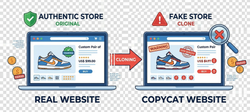
It also makes impersonation easier to spot. If your customers know that your messages always come from @yourstore.com, a fake “your order is on hold” email from a lookalike Gmail account stands out. If your store is copied by a fake site, our guide on how to report fake websites covers what to do.
Your emails are more likely to reach the inbox
When you send from your own domain, you can publish the authentication records that mail providers check before they decide where a message goes:
- SPF lists the servers allowed to send email for your domain.
- DKIM adds a signature that shows the message was not altered on the way.
- DMARC tells receiving servers what to do with messages that fail those checks, and can send you reports about who is sending mail in your name.
The large mailbox providers now require them. Since February 2024, Gmail asks every sender to use SPF or DKIM, and anyone who sends more than 5,000 messages a day to Gmail accounts needs SPF, DKIM and DMARC, plus one-click unsubscribe for marketing email. Yahoo applies similar rules, and Microsoft started enforcing them for Outlook.com in May 2025.
A small store is unlikely to hit the 5,000 threshold, but the direction is clear: unauthenticated mail is treated with more suspicion every year. You can only publish these records for a domain you control, which rules out a free address.
The address belongs to the business
A free account belongs to a person. A mailbox on your domain belongs to the business.
You notice the difference when someone leaves the team, when two people need to answer orders@, or when you sell the store. Addresses on your own domain can be reassigned, forwarded or closed. A personal Gmail account cannot be handed over cleanly.
You can organize email by role
Once you own the domain, you can create addresses for functions instead of people:
-
hello@orcontact@for general questions. -
orders@for anything related to a purchase. -
support@for problems, so they don’t get mixed up with sales. -
billing@for invoices and suppliers.
Role addresses survive staff changes, and you can change who receives them without editing your contact page.
How to set it up with your Jumpseller store
1. Get a custom domain
Everything else depends on it. You can buy a domain or connect one you already own, and the domain setup guide explains the options. A custom domain requires a paid plan; annual subscriptions on Plus and higher plans include a free domain, as described on our plans page.
2. Choose an email provider
Jumpseller hosts your store and can manage your domain’s DNS, but it does not host mailboxes, so you need an email provider. The common options:
- Google Workspace. Its entry plan, Business Starter, includes email on your own domain. You can buy and manage it directly from your Jumpseller admin under General > Google Workspace, with the subscription billed through Jumpseller (setup guide).
- Microsoft 365. The Business Basic plan includes email on a custom domain with Outlook.
- Zoho Mail. Its Forever Free plan covers up to 5 users with 5 GB each on one domain, used through the web and mobile apps (no IMAP or POP access), and it is only offered in some regions. Paid plans remove those limits. Our Zoho guide walks through the setup with a domain hosted on Jumpseller.
Prices and plan details change, so check each provider’s current pricing before you choose. For a small store, one or two real mailboxes plus a few aliases that forward to them is usually enough.
3. Add the DNS records
Your provider gives you MX records (where incoming mail goes) and the values for SPF and DKIM. If your domain uses Jumpseller’s nameservers, you add them in your admin under Settings > Domains, in the Advanced DNS Configuration section of your domain. The Zoho guide shows each record with screenshots. If your DNS is managed by another provider, add the same records there. Changes can take a few hours to propagate.
4. Add a DMARC record
Add a TXT record on the host _dmarc with a monitoring policy to start, for example v=DMARC1; p=none; rua=mailto:dmarc@yourstore.com. Read the reports for a few weeks, check that your real email passes, and then consider a stricter policy.
5. Update your store and everywhere else
In your Jumpseller admin, go to General > Emails and set the Contact Email to your new address. Replies to your store’s order emails go there.
By default, Jumpseller sends order emails from no-reply@jumpseller.com with your store’s name, and you can change the sender to an address on your domain (see how). Weigh the tradeoff first: Jumpseller’s sending domain has years of reputation with mail providers, while a new domain can land in spam for a while. If you switch, have SPF, DKIM and DMARC in place first.
Then update every other place where the old address appears: invoices, social media profiles, your Google Business Profile, packing slips and supplier records.
6. Keep the old address forwarding
Don’t delete the old account. Forward it to the new address for at least a year so replies to old threads and invoices still reach you.
Common mistakes
- Changing your domain’s nameservers before moving your email. If your current mailboxes come from your old hosting company, they stop working when the nameservers point to Jumpseller. Set up the new provider first, or copy the MX records over before you switch.
- Writing personal messages from a role address. If you reply from
orders@, sign with your name so the customer knows who they are talking to. - Leaving replies unread. Customers reply to order emails. Make sure the contact address on your store is a mailbox someone checks every day.
- Creating too many mailboxes too early. Five inboxes nobody reads are worse than one that gets answered the same day.
Next step
If your store already has its own domain, the Google Workspace option in your admin is the shortest route: create the first mailbox, set it as your contact email, and add support@ and orders@ as aliases. If you don’t have a domain yet, start on the domains page. Once your address is set up, our guide to the ecommerce email lifecycle covers what to send from it.